This article details the configuration of Microsoft 365 R-Cloud modules within SaaS2Cloud NG (HYCU R-Cloud). It outlines how to use HYCU-Managed OAuth 2.0 applications to protect Exchange Online, SharePoint, Teams, Planner, and OneDrive.
Consideration
To protect Microsoft 365 services, there are 2 approaches that can be followed.
1. Using a HYCU-Managed OAuth 2.0 Application
HYCU, by default, provisions HYCU-managed applications (HMAs) as OAuth 2.0 Applications for each service available under “Cloud Accounts”. These applications, registered in the HYCU Azure Tenant, significantly streamline the SaaS deployment process.
This approach eliminates the need for you to register an application in your own Azure tenant. Instead, by simply granting the necessary permissions during the module addition process, HYCU automatically creates an Enterprise application in your Azure Tenant.
This enterprise application then handles all backup and restore operations on behalf of HYCU, ensuring seamless protection for your Microsoft 365 services. This is the recommended approach and is discussed in this article.
2. Using a Custom OAuth 2.0 Application
For organizations prioritising control, security posture, and compliance, where allowing HYCU to handle application registration and permissions isn't an option, the alternative is a custom application registration. If this is required the Cloud Services team will assist in configuring the Custom OAuth 2.0 Application during your on-boarding.
Before you Start
Before you add a module to R-Cloud as a source, you must have the tenant ID of the environment that you want to protect.
To obtain the Tenant ID:
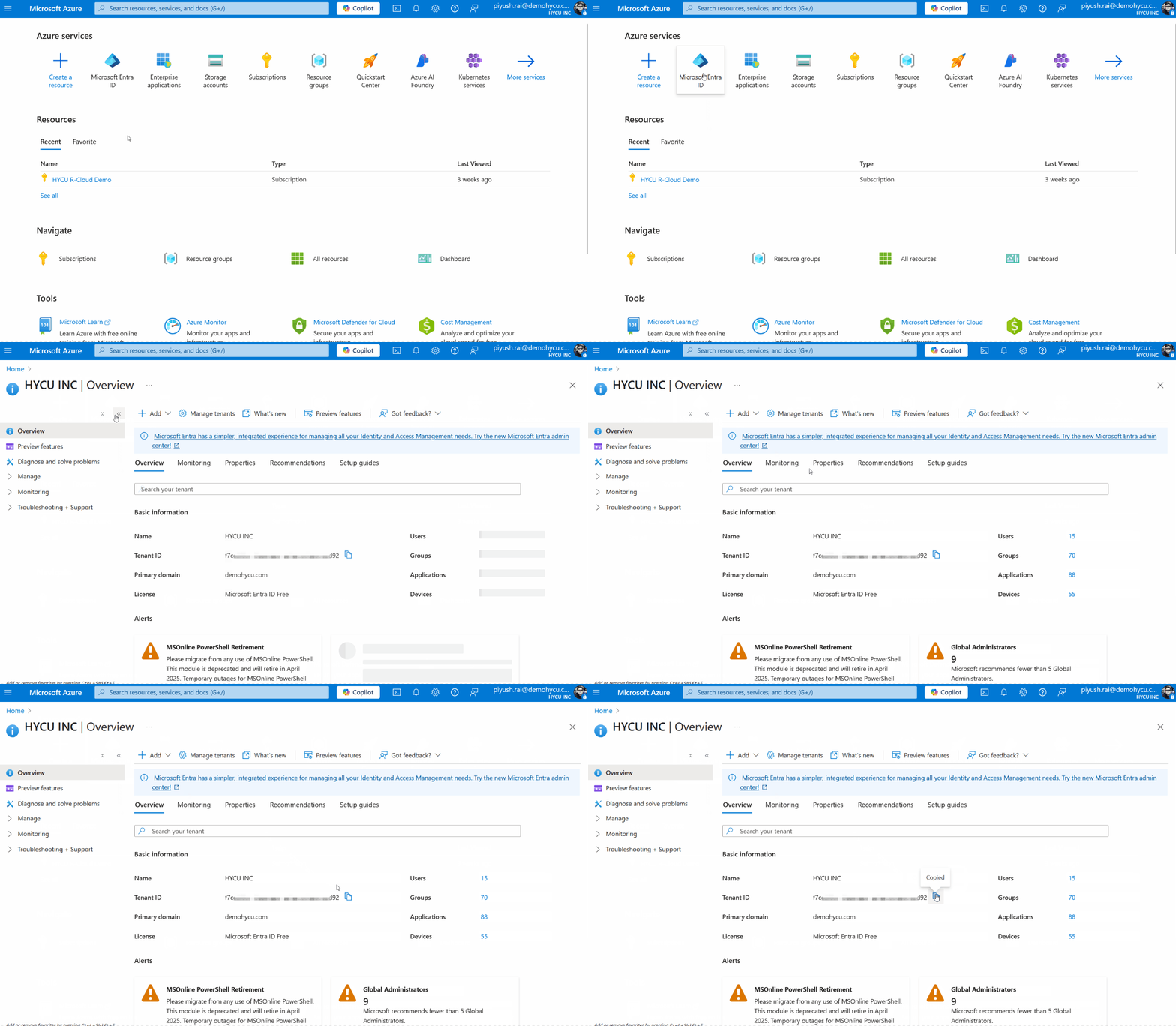
Log in to the "Azure portal". On the resource menu or from the Home page, select “Microsoft Entra ID” and “Copy” the “Tenant ID” from the “Microsoft Entra ID → Basic information” section. The Tenant ID is used while adding the R-Cloud modules.
When adding Microsoft 365 services as a source, the HYCU user must have Azure administrator privileges; otherwise, admin approval and intervention are required. The easiest way to add the sources is by adding an Azure Administrator as a HYCU R-Cloud user to simplify the process.
Steps to add Microsoft 365 services using the HYCU-Managed OAuth Application
We've already discussed the approach and benefits in the "Using a HYCU-managed OAuth 2.0 Application" section. When adding Microsoft 365 services as a source, the user must have Azure administrator privileges; otherwise, admin approval and intervention are required. In the following example, the HYCU user also is an Azure Account Administrator.
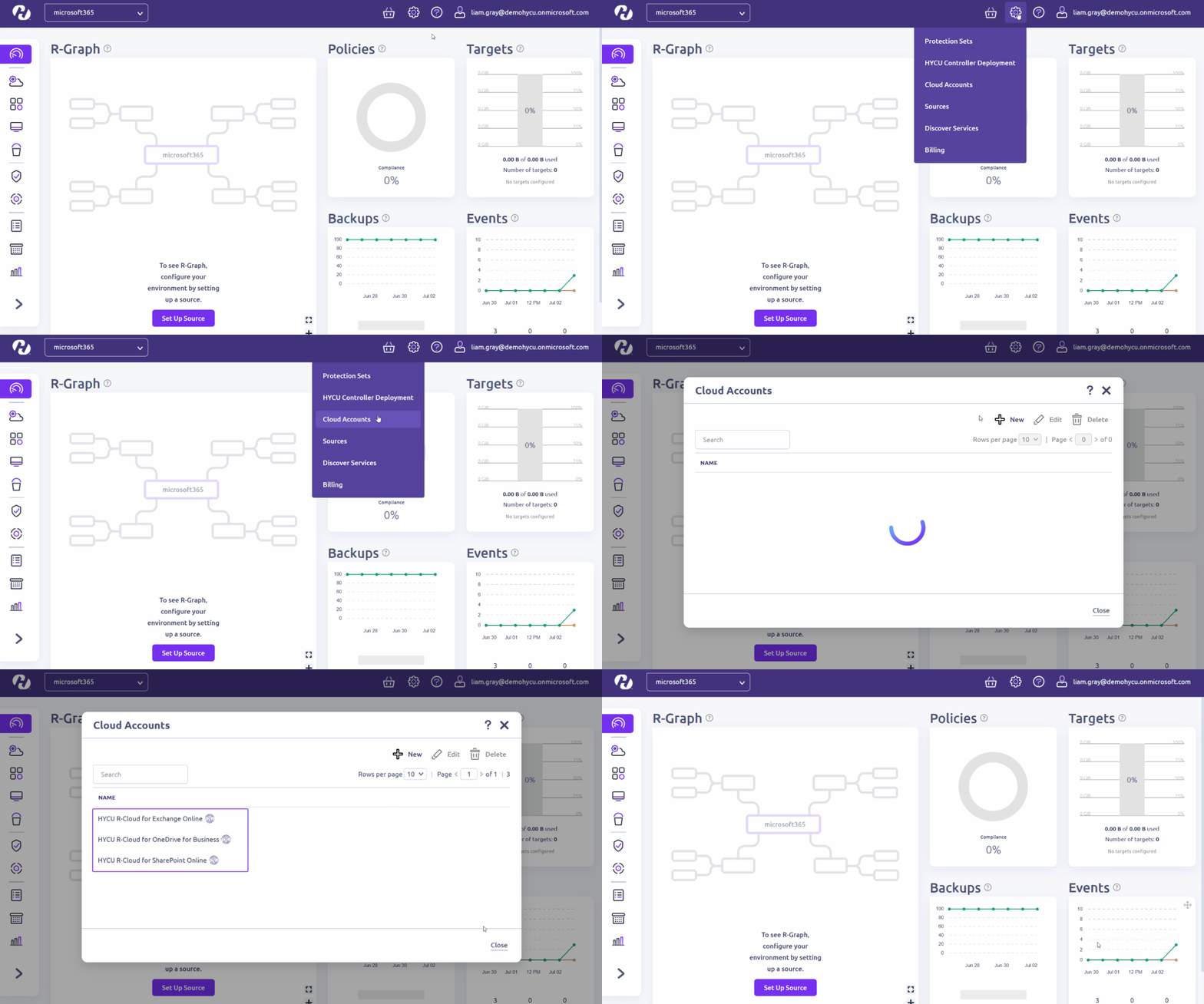
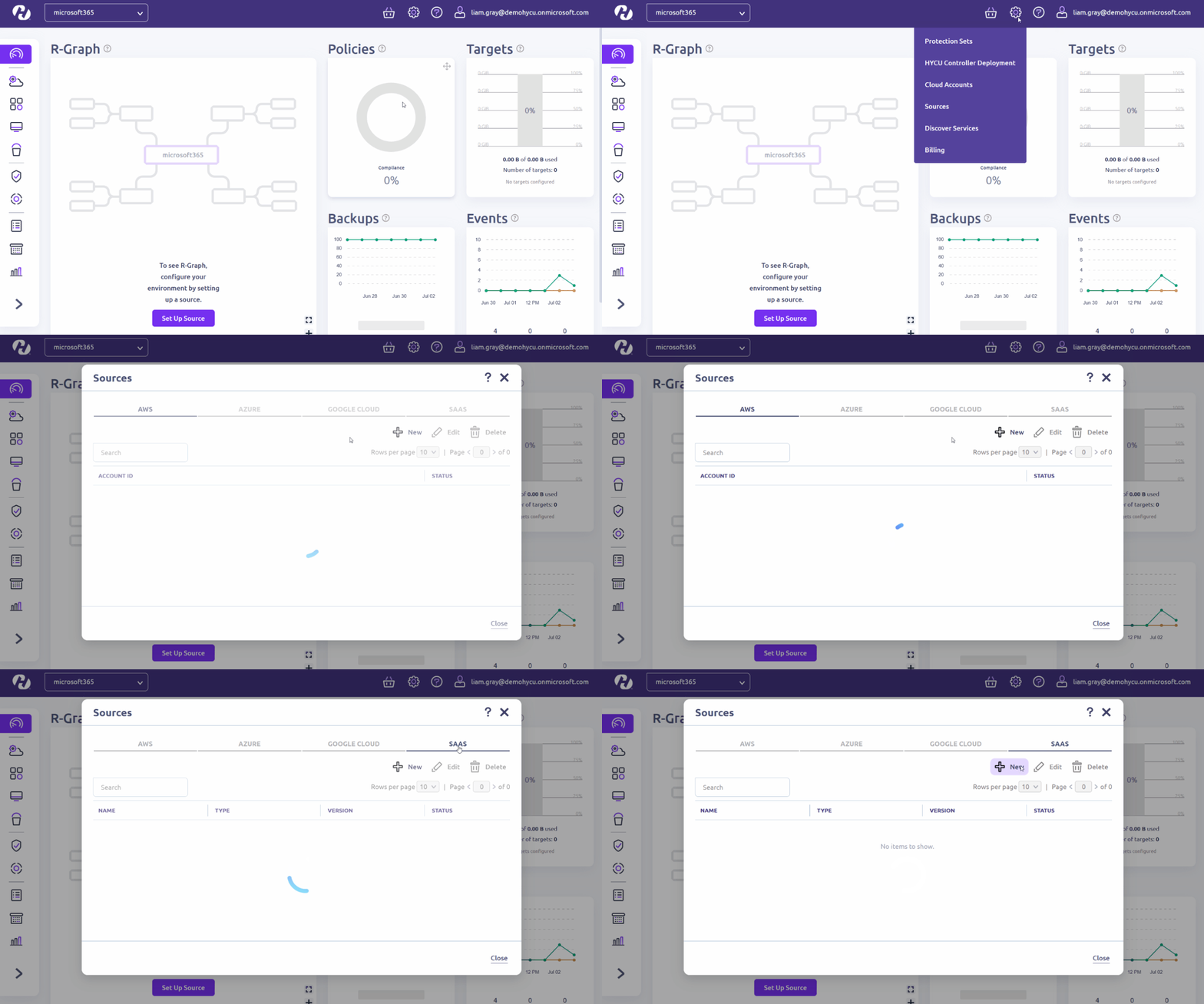
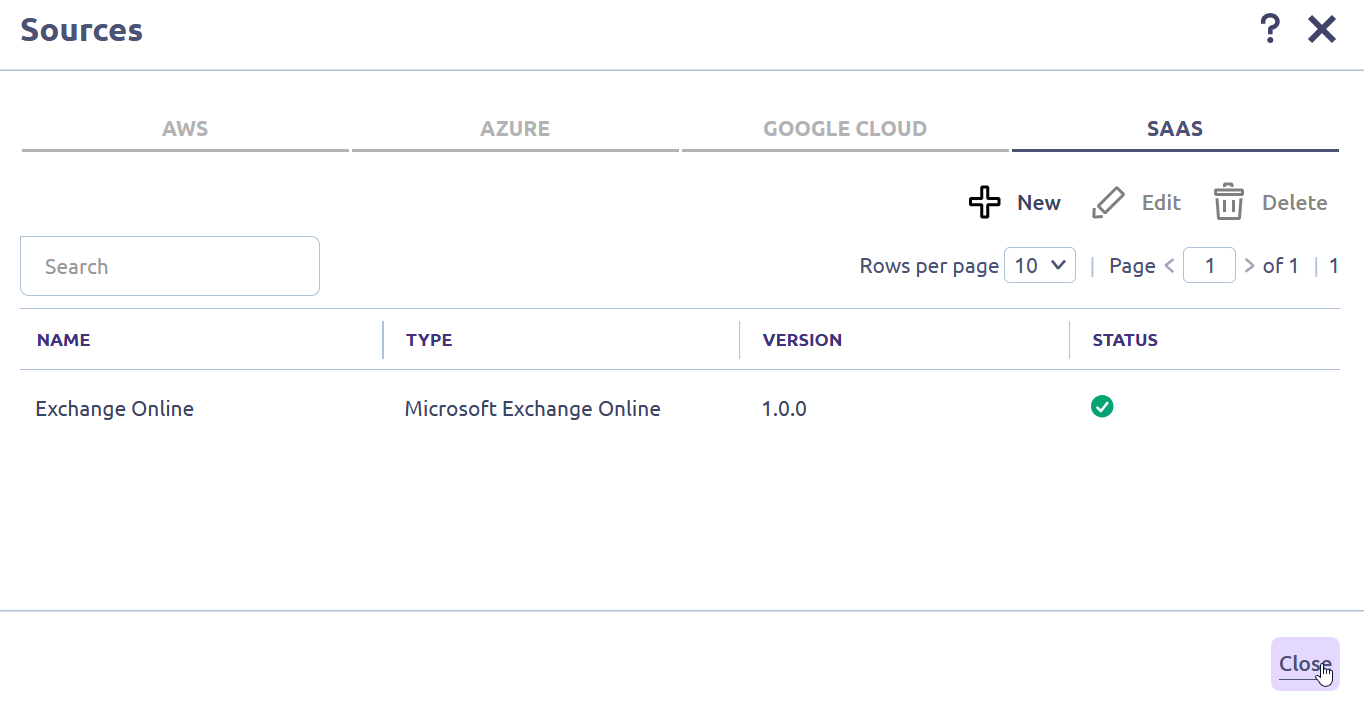
To begin, from the HYCU dashboard, click “Settings (cog)” in the top-right corner, and then choose the “Sources” tab. In the subsequent Sources dialog box, proceed to the "SaaS" page and click "New." You'll then see the “Source → New” page.
Adding the “Microsoft Exchange Online” module as a Source
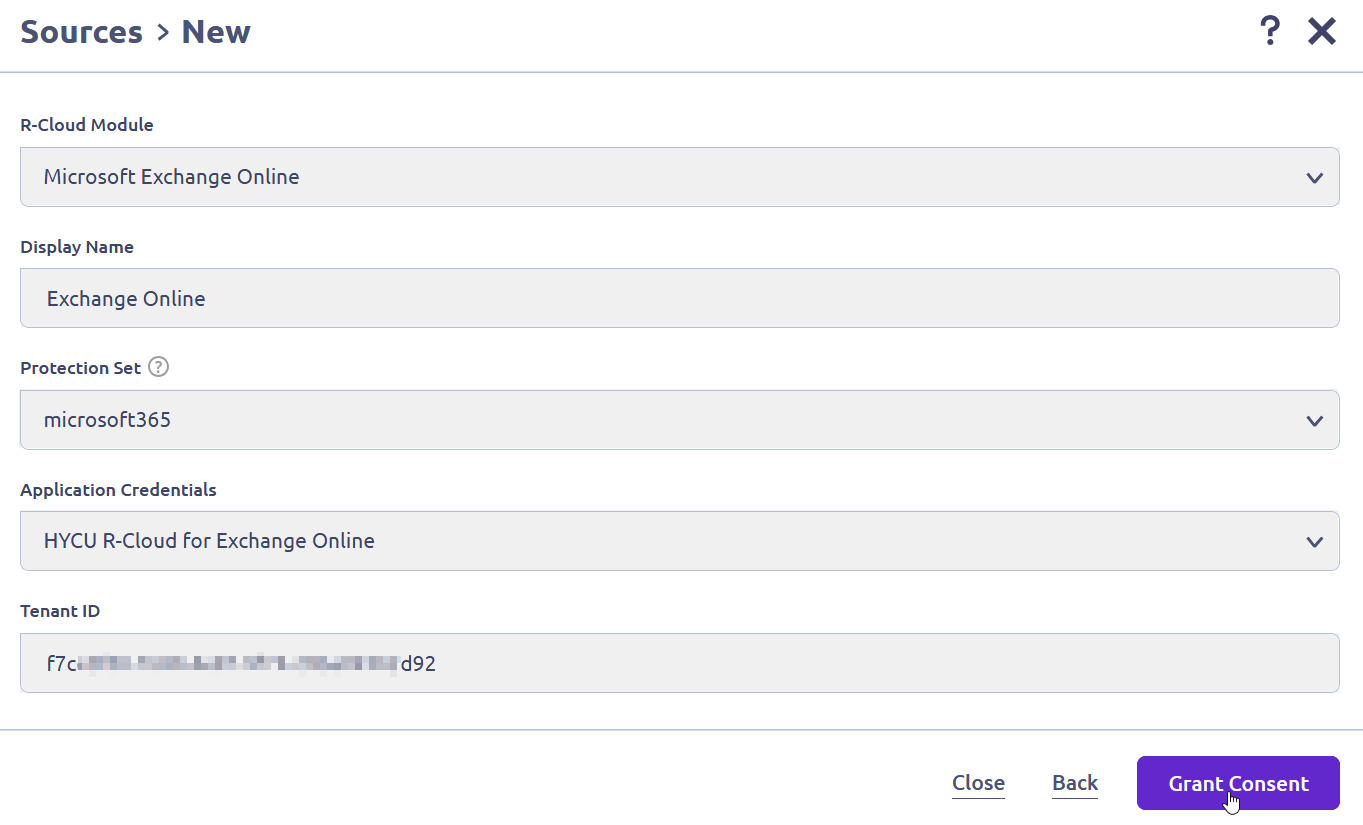
Next, you'll be prompted to enter or select your Azure login credentials to access the Azure portal. After doing so, you'll be prompted to accept the necessary permissions. Once authorization is successful, the R-Cloud module will be added. Once done, click “Close”.
Adding the "Microsoft OneDrive for Business" module as a Source
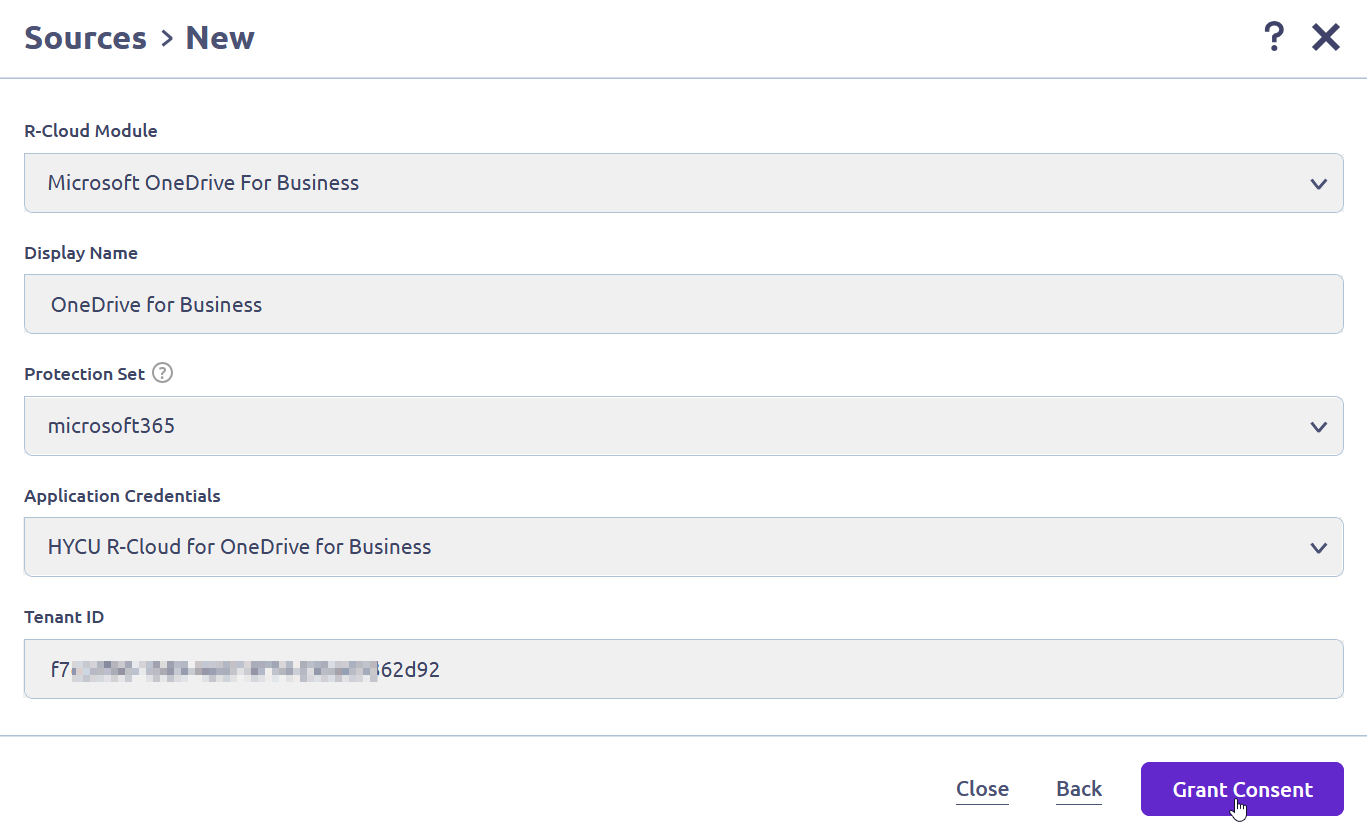
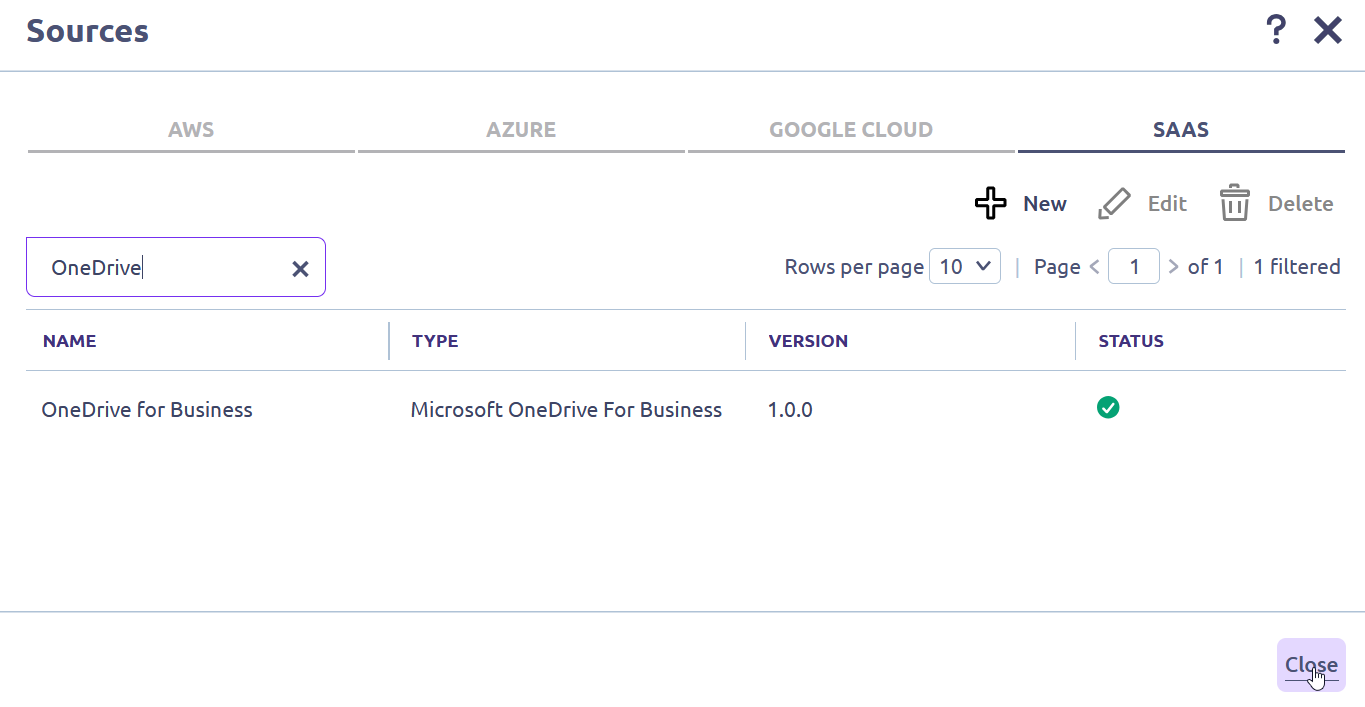
Next, you'll be prompted to enter or select your Azure login credentials to access the Azure portal. After doing so, you'll be prompted to accept the necessary permissions. Once authorization is successful, the R-Cloud module will be added. Once done, click “Close”.
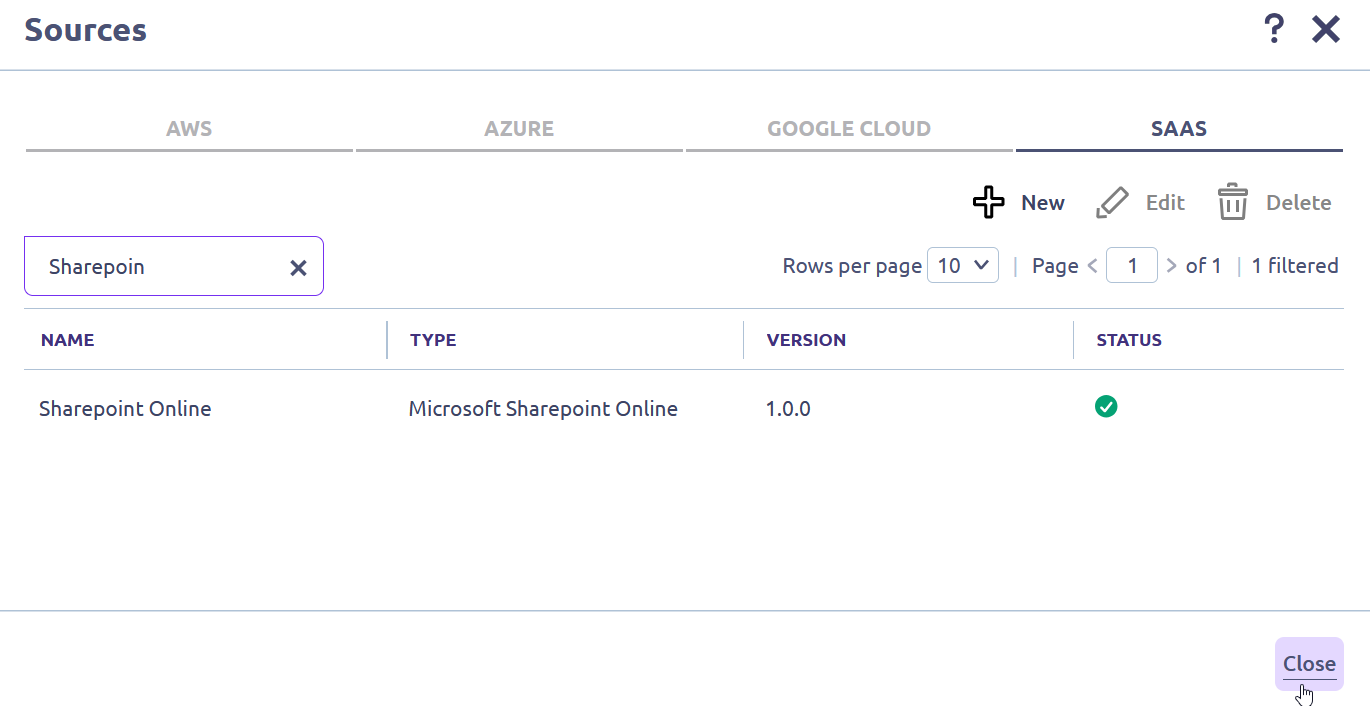
Adding the "Microsoft SharePoint Online" module as a Source
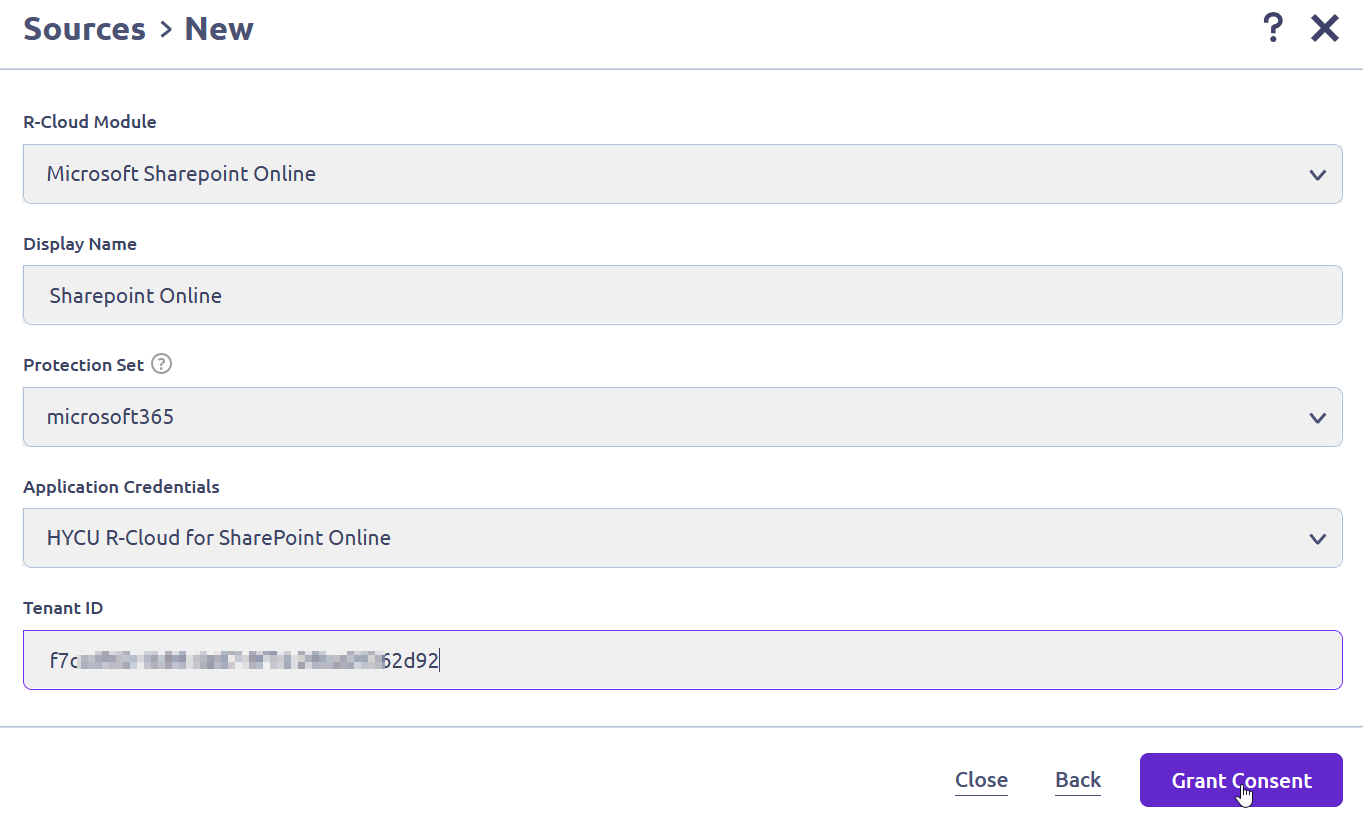
Next, you'll be prompted to enter or select your Azure login credentials to access the Azure portal. After doing so, you'll be prompted to accept the necessary permissions. Once authorization is successful, the R-Cloud module will be added. Once done, click “Close”.
Adding the "Microsoft M365 Teams" module as a Source
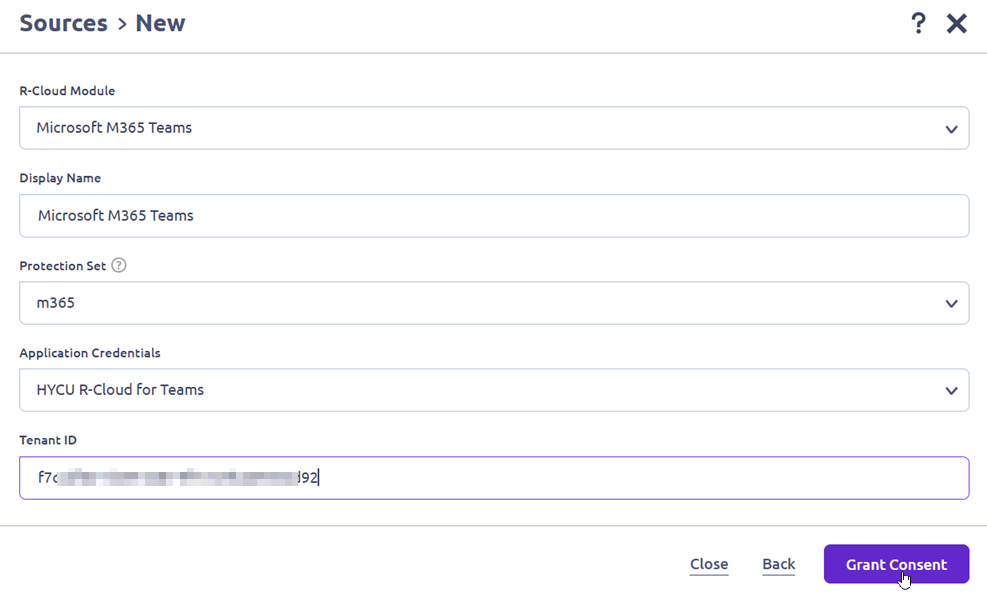
Next, you'll be prompted to enter or select your Azure login credentials to access the Azure portal. After doing so, you'll be prompted to accept the necessary permissions. Once authorization is successful, the R-Cloud module will be added. Once done, click “Close”.
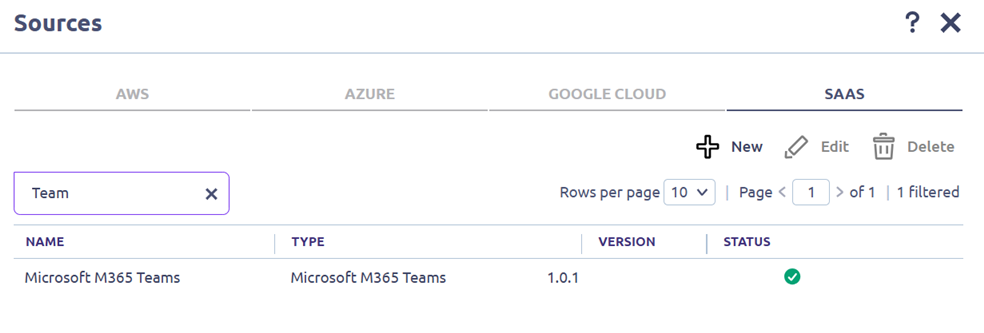
Missing Permissions: Adding Microsoft 365 Services to HYCU
As discussed in the "Before You Start" section, the HYCU user adding the Microsoft 365 Services as a source must have the Azure Account Admin permissions. There can be a scenario when the HYCU user is going to rely on an external Azure Account Administrator. The following steps can be followed as a workaround.
When the user attempting to “Grant Consent” lacks Azure administrator privileges to authorize HYCU to create an enterprise application (service principal) on its behalf in the Azure Tenant, the following prompt appears
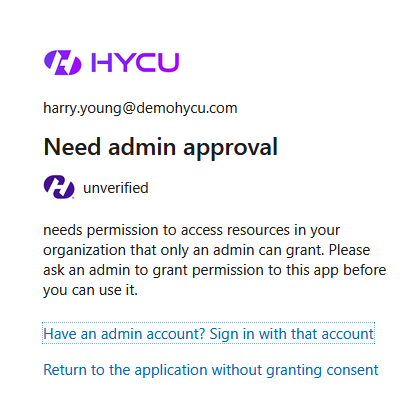
If the Azure Administrator cannot be added as a HYCU R-Cloud user, the following workaround can be utilized. The simplest way to address this issue is to copy the “Admin Consent” URL from the browser and share it with the Account Admin for approval.
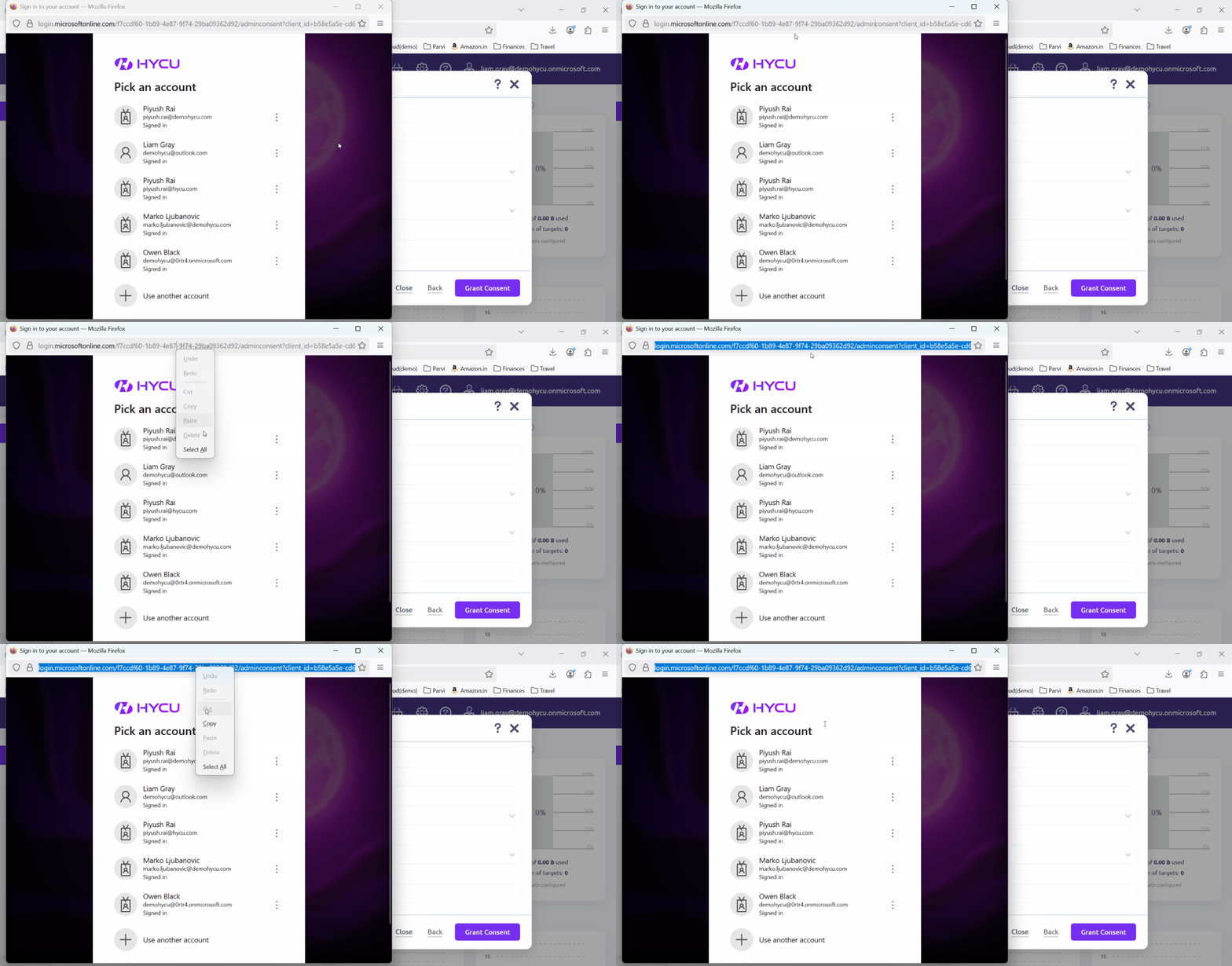
Next, the Azure Administrator can open the shared URL, log in, and click "Accept." After authorization, an enterprise application (service principal) is created on behalf of HYCU.
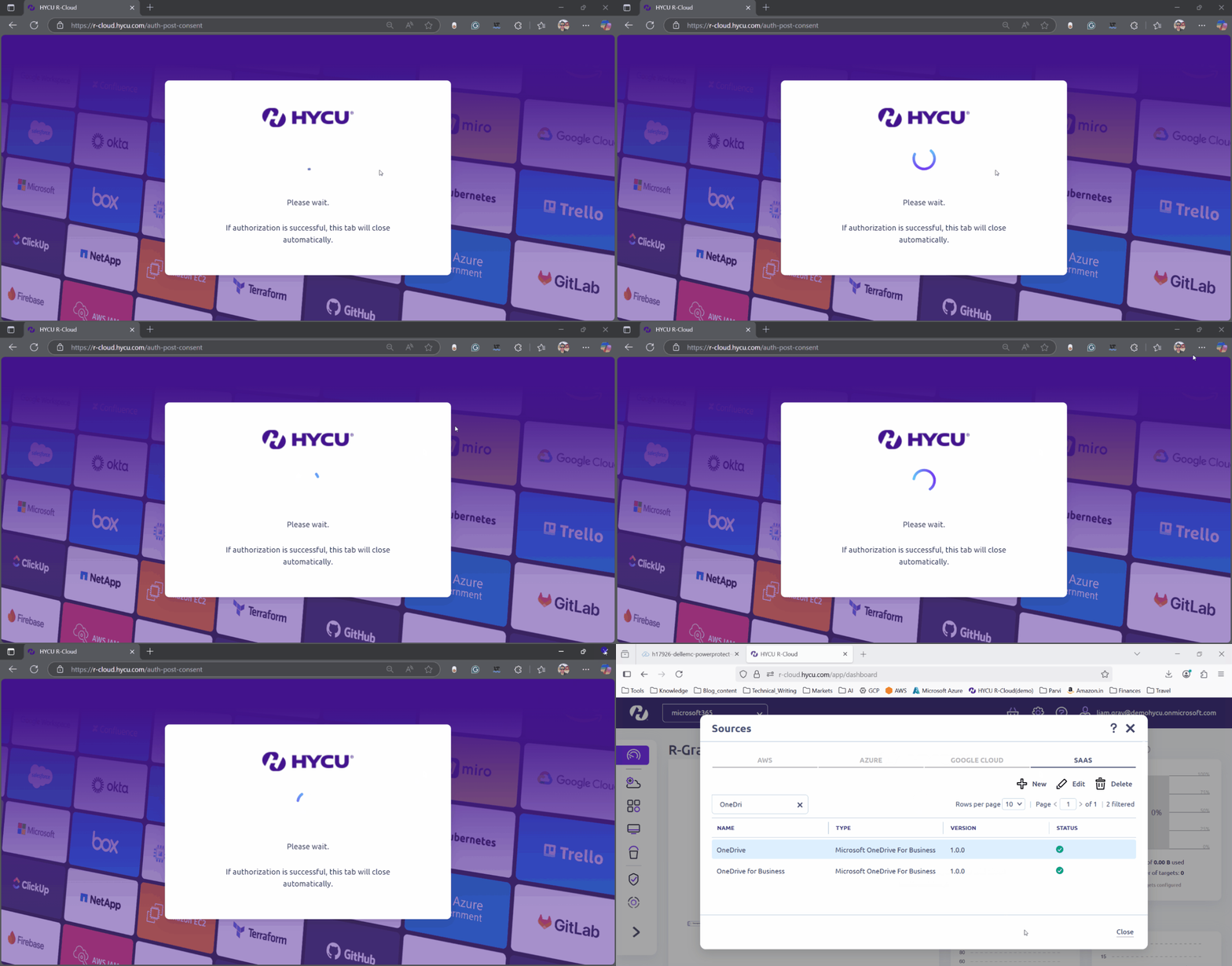
The only downside of this workaround is that, while the post-authorization consent page normally closes automatically, it doesn't do so here because admin consent was given in another session. Therefore, you must manually close the page after verifying that the R-Cloud module has been added.
Was this article helpful?
That’s Great!
Thank you for your feedback
Sorry! We couldn't be helpful
Thank you for your feedback
Feedback sent
We appreciate your effort and will try to fix the article