iManage Cloud (hosted and managed on iManage’s cloud) is a leading cloud platform for intelligent document and email management, essential for professional services and Government data. It centralizes organization, enhances security, and streamlines collaboration on critical work products, boosting productivity and ensuring governance.
For more details, refer to the official "iManage documentation"
By default, HYCU provisions dedicated HYCU-managed OAuth 2.0 pre-approved clients for iManage tenant types (Prod or Trial). These are available as "OAuth 2.0 Cloud Accounts," which significantly streamlines iManage deployment and protection.
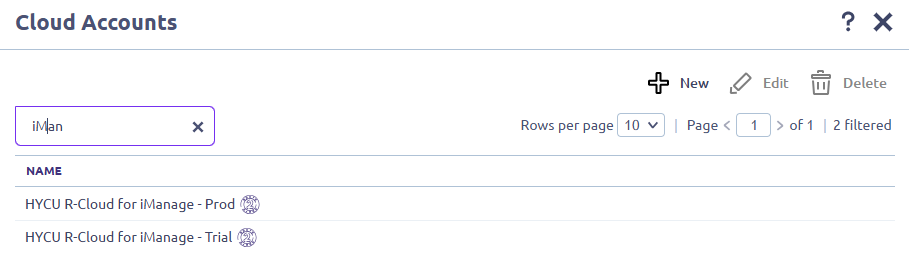
1. Before you Start
Users managing service accounts and the HYCU application in iManage Control Center must be assigned the “Global Management” role, encompassing "App Management" and "User Management" privileges. For details, see the iManage "Global privilege descriptions" documentation.
The provisioned service account in the iManage Control Center must be a "Backup and Restore" type Service Account. This account is required to add iManage Cloud as a SaaS module in HYCU R-Cloud.
HYCU's access to the iManage v2 API is via a registered HYCU application. However, its access is unaffected by HYCU application security settings because it leverages a Backup and Restore Service Account. As a system-level account, it operates outside app-level restrictions.
2. Configuring iManage Cloud
In the following example, the signed-in user “Bella Gibson” (bella.gibson@demohycu.com) with the “Global Management” role will register HYCU R-Cloud as an application. Furthermore, this user is part of the “NRTADMIN” group also called an iManage system administrator. This group includes the most complete access to all features.
2.1 Signed-In User: Verifying Global Management Role
This step is critical, as only users with "Global Admin" roles can see the "Applications" section in the navigation menu and register the HYCU application. There are multiple approaches to managing user privileges, and this is beyond the scope of this documentation. For details, refer to the iManage “Roles" documentation.
Sign in to the “iManage Work” web interface and navigate to the “iManage Control Center” web interface.
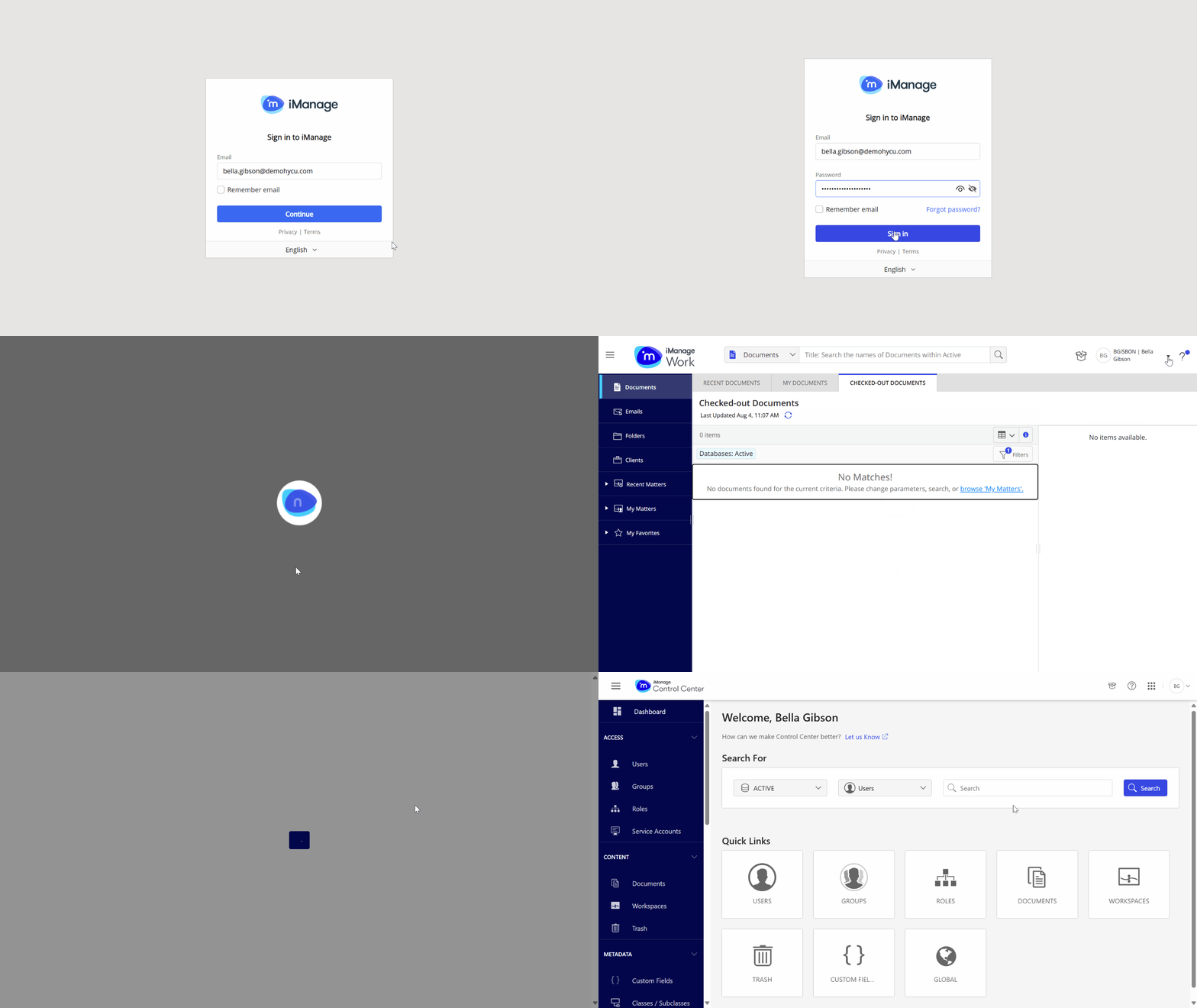
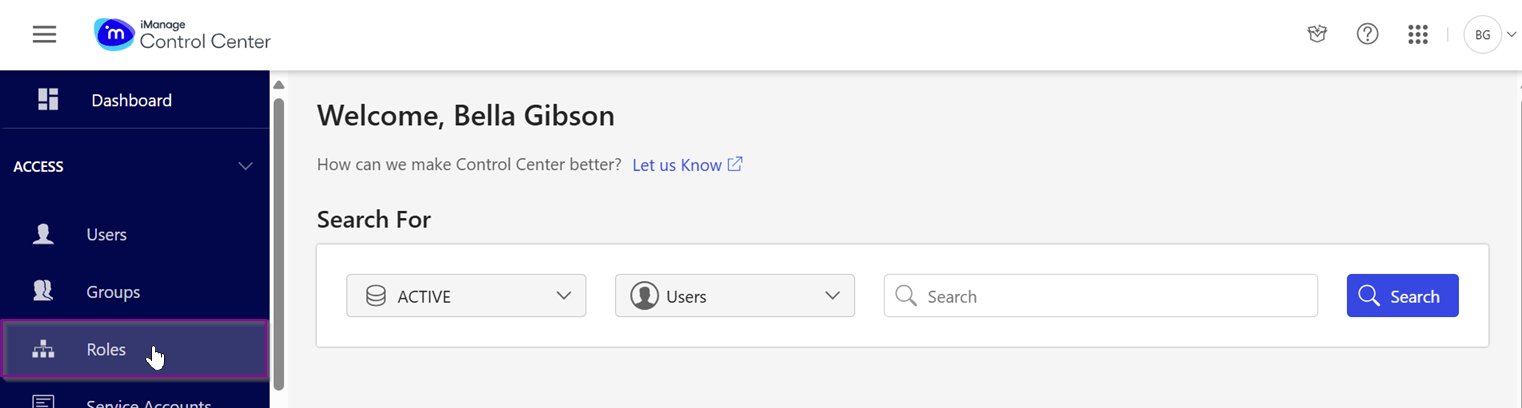
Next, navigate to “ACCESS → Roles” in the navigational menu on the left-hand side of the interface.
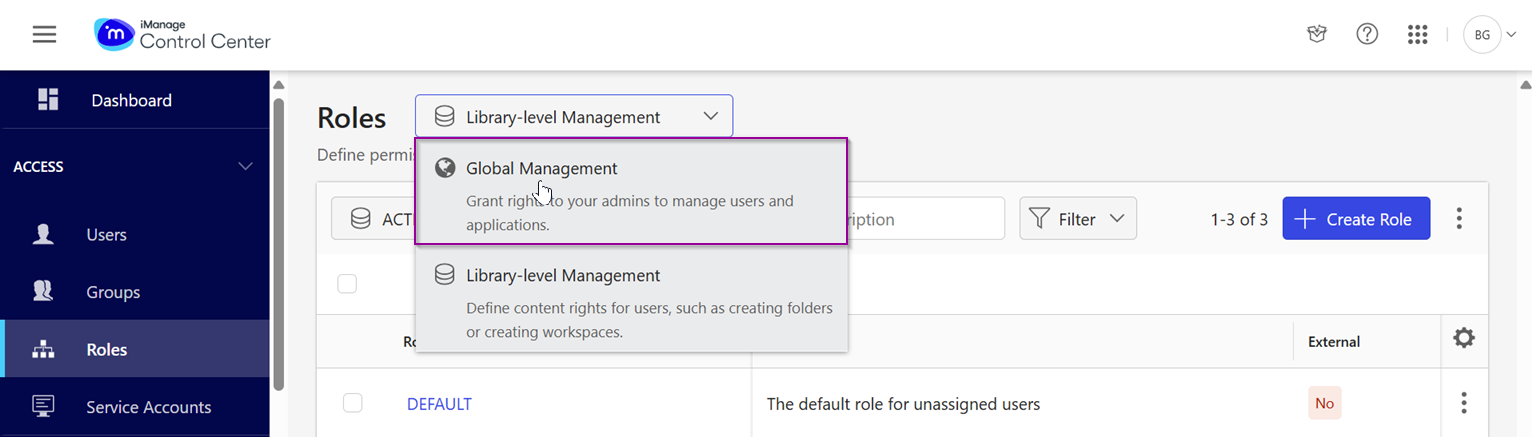
Next, on the “Roles” interface, switch to "Global Management" roles if you are currently in the "Library-Level Management" role context.
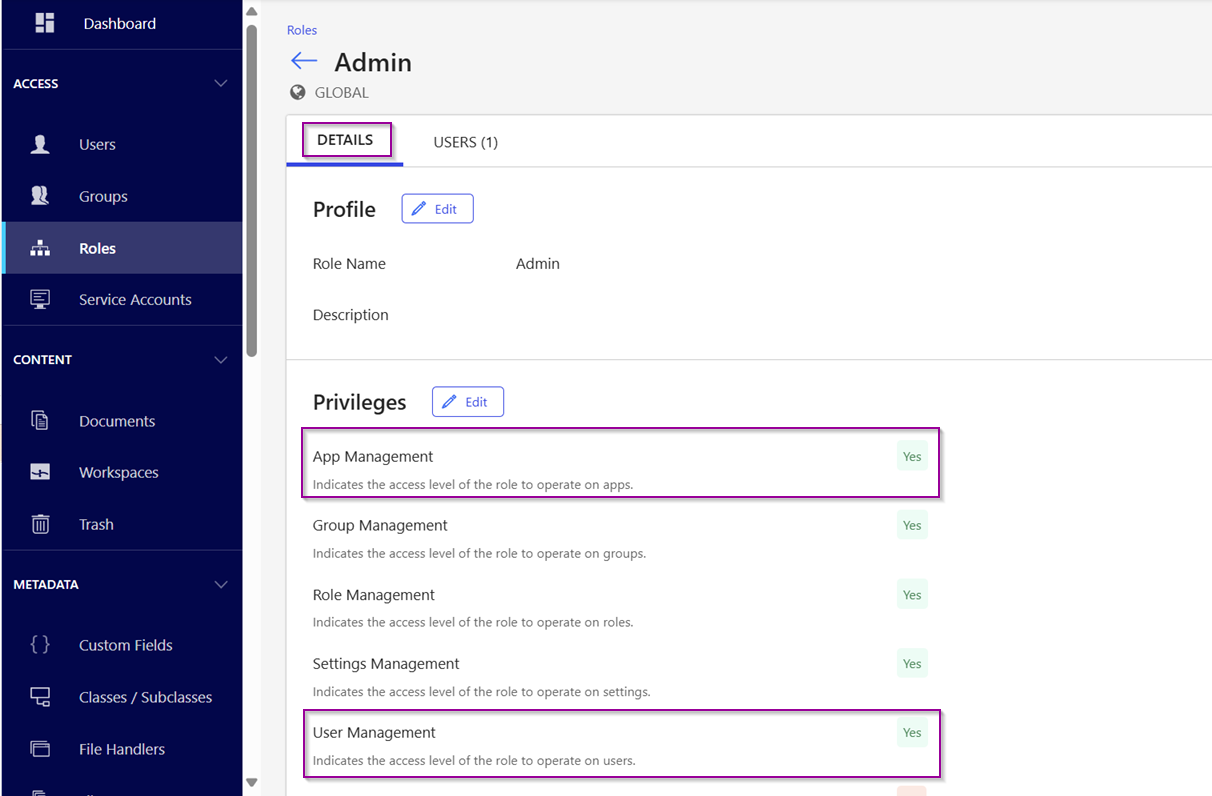
Next, within the "Global Management Roles" context, click the "DETAILS" tab. You will then see that this role has ‘App Management’ and ‘User Management‘ privileges.
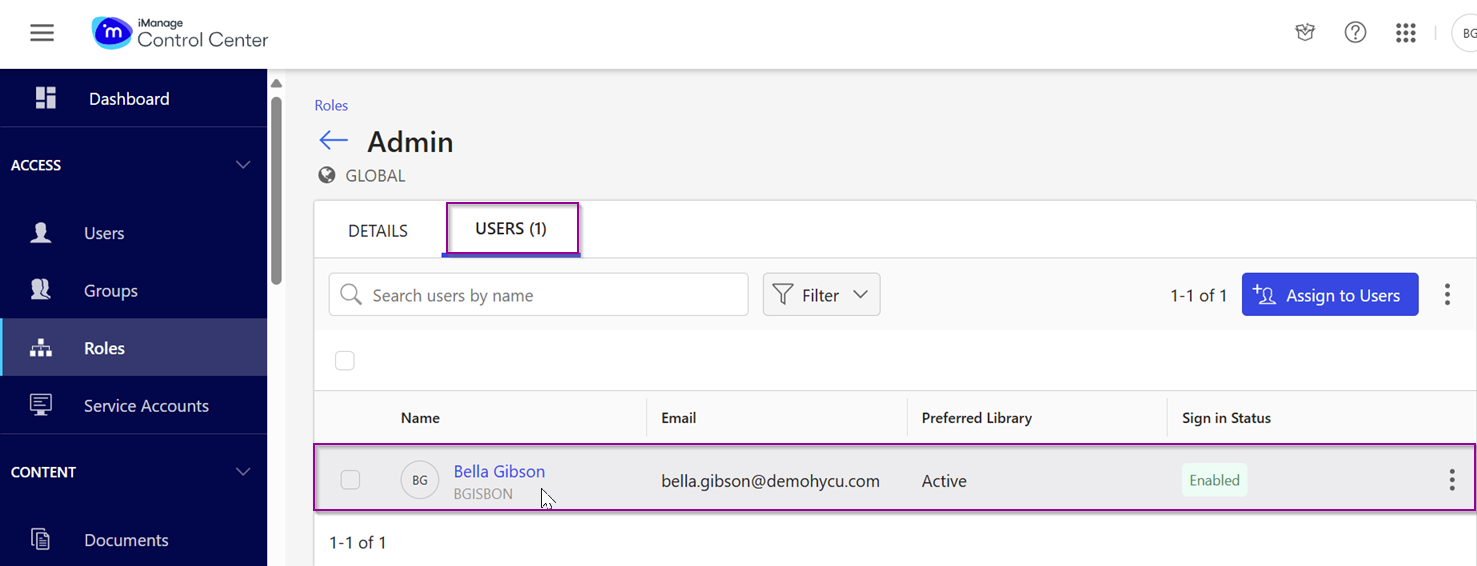
Within the "Global Management Roles" context, validate user group membership. Upon clicking the "USERS" tab, you will observe that "Bella Gibson" is an "Admin" role member. Although this step is not mandatory for HYCU's backup and restore functionalities, it is necessary given this user's responsibility for managing library content.
2.2 Signed-In User: Verifying Library Management Role
As discussed, to manage all data across all iManage Work Libraries, the user "Bella Gibson" must be part of the "NRTADMIN" group in each individual library. The procedural steps are similar to "2.1 Signed-In User: Verifying Global Management Role", with the key difference being that the group (not role) membership needs to be identified within the Library Management context.
Sign in to the “iManage Work” web interface and navigate to the “iManage Control Center” web interface.
Next, navigate to “ACCESS → Users” in the navigational menu on the left-hand side of the interface.
Next, on the “Users interface”, switch to “Library-Level Management” from “Global Management”.
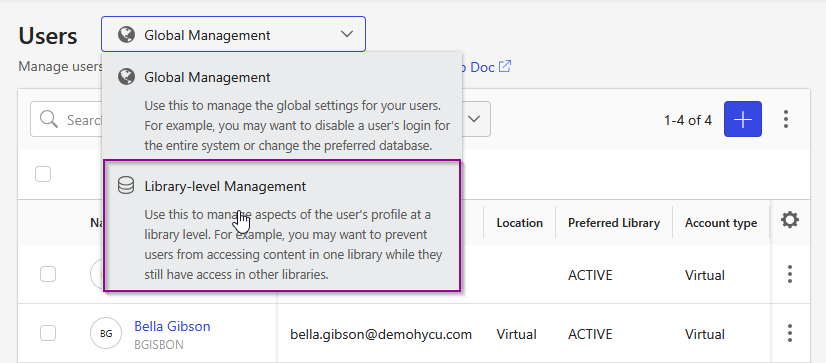
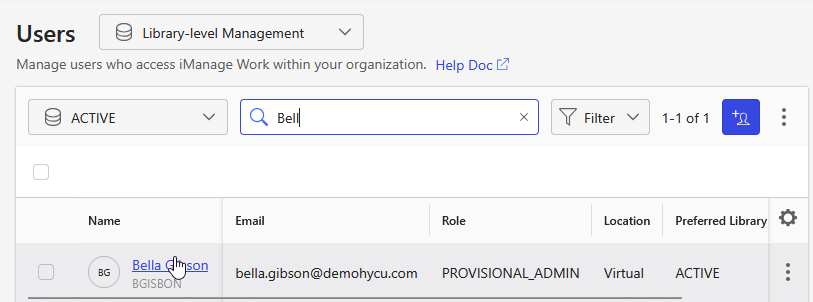
Next, in the “Library-Level Management” check the user group membership. Click on the “user”, and a new page will appear. Click on the “Groups” tab. The user “Bella Gibson” is a member of a Global Admin Group named “NRTADMIN”.
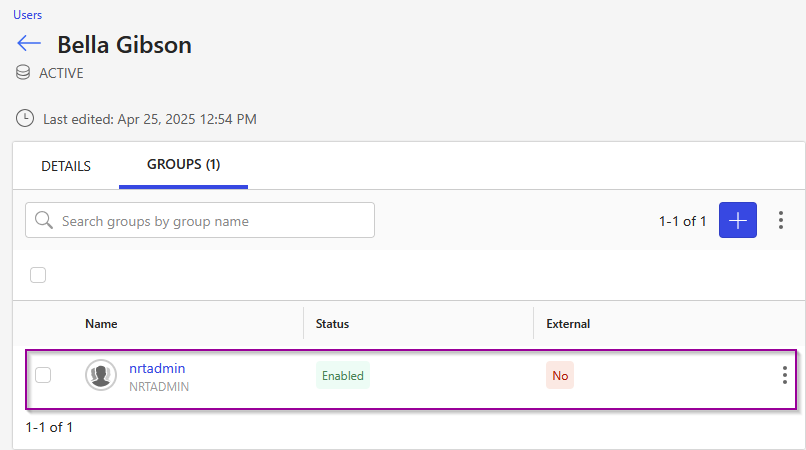
2.3 Creating a Service Account
If you do not have a service account created, follow these steps. For details, refer to the iManage documentation: "Create a service account."
In iManage Control Center, browse to “Access→ Service Accounts”. At the top of the page, select “+ Create Service Account”.
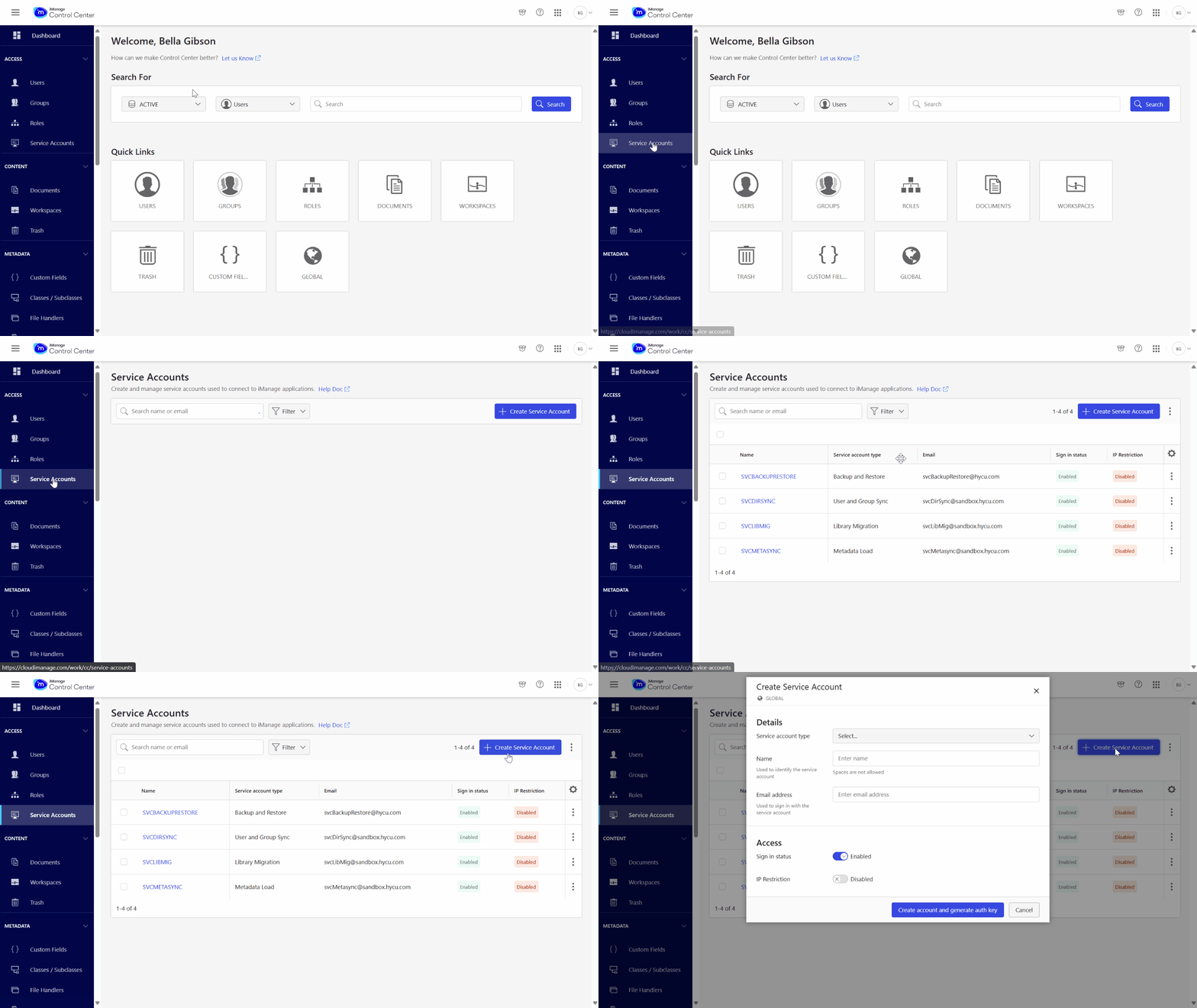
Next, in the “Create Service Account” page, enter service account details as described in the following table. Click “Create account and generate auth key” tab. The service account is created, and a confirmation dialog is displayed.
| Field | Description |
|---|---|
| Service account type | Backup and Restore: This service account type is used for syncing to iManage backup tools like HYCU. |
| Name | Specifies the name of the service account. |
| Email address | Identifies the email address of the service account. |
| Sign in Status | Specifies the sign-in status of the service account. Setting this field to:
|
| IP Restriction | Indicates whether access to the application is allowed from any IP address or only from trusted IP address ranges. Setting this field to:
|
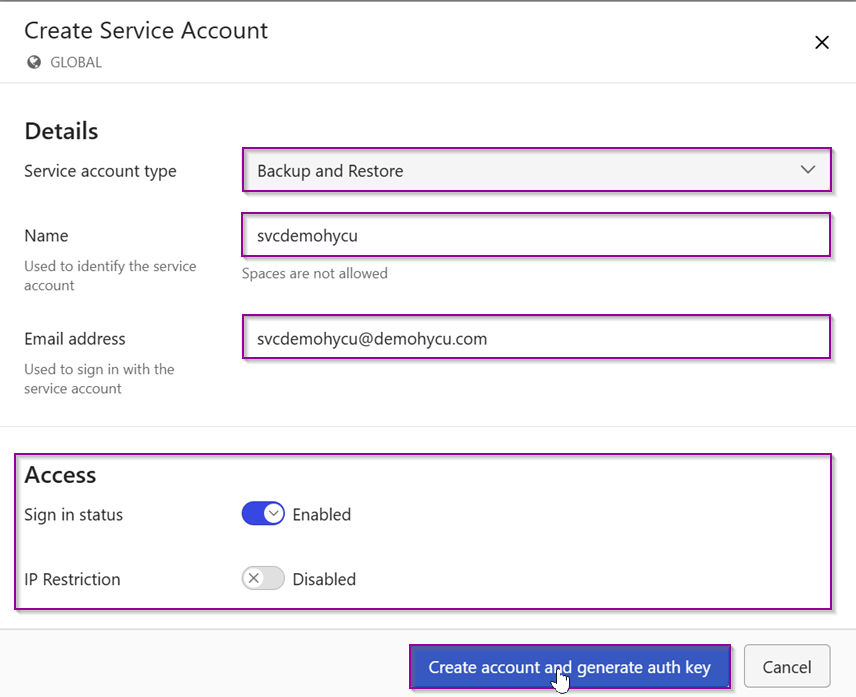
The service account is created, and a confirmation dialog is displayed. The sign-in credentials (email address and auth key) for the service account are shown on the confirmation page. You can copy these values by selecting the associated “Copy” button. Click “Close” after copying the key.
Note: You should copy and save the key for use when signing in. If you lose the key, you'll need to reset it by "Reset the authorization key".
2.4 Adding the HYCU Application
iManage Cloud authorizes HYCU R-Cloud to integrate with iManage as an application (app). This authorization grants HYCU R-Cloud access to iManage data via the OAuth 2.0 API using a Client ID and Secret.
Procedure
Navigate to “SETTINGS → Application” in the navigational menu on the left-hand side of the interface and select “+Add Application”.
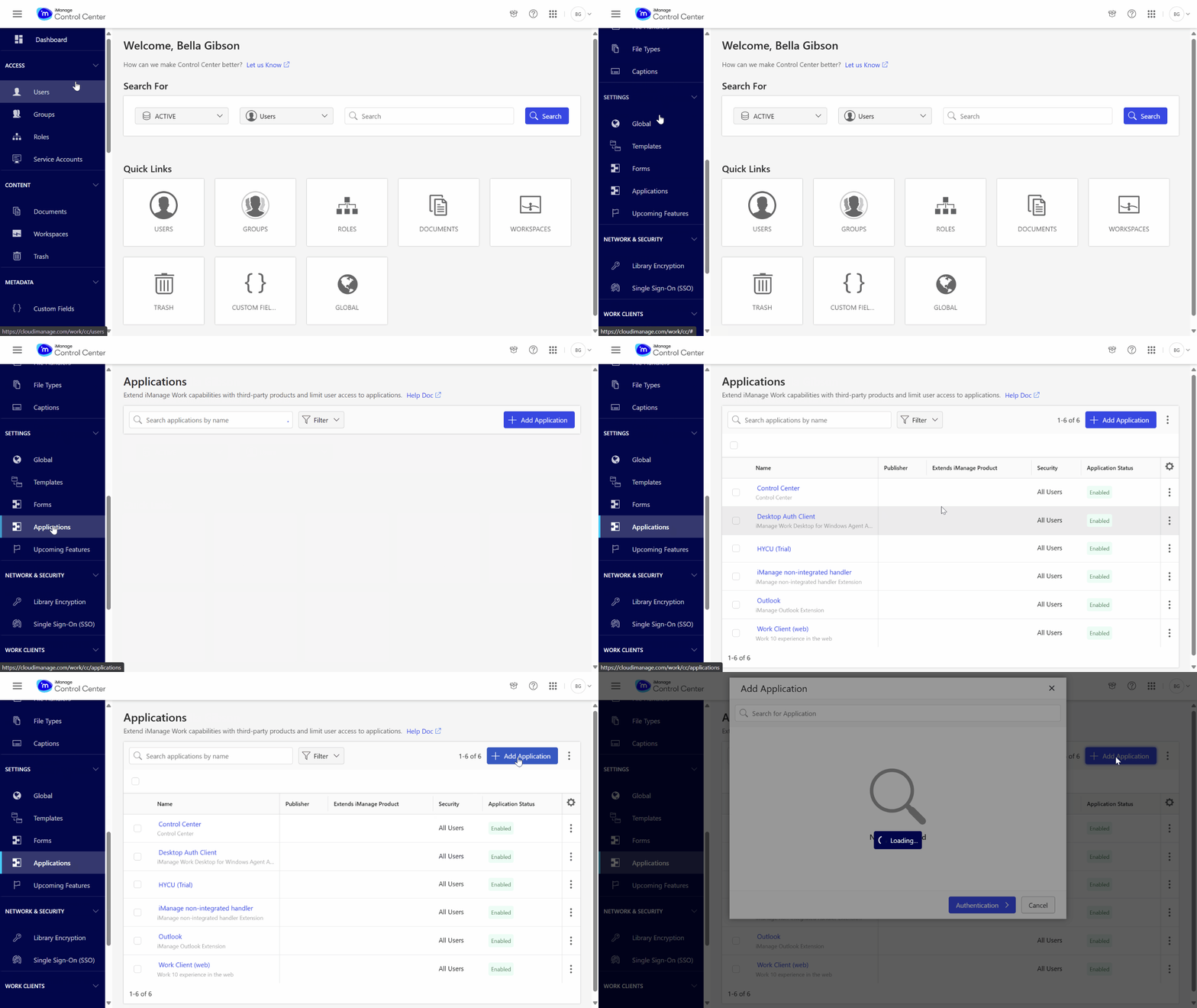
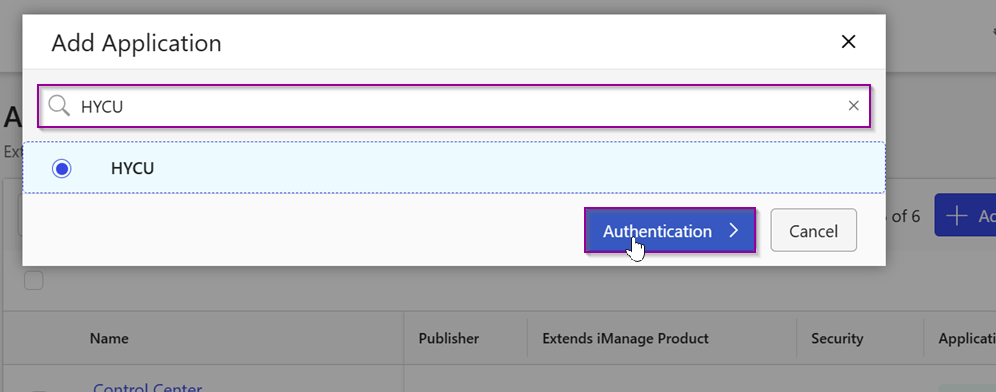
The “Add Application” page opens and displays the list of applications available for you to add. Search for “HYCU” application using the Search for Application field at the top of the dialog Select the “HYCU” application to add, then select “Authentication” to configure the OAuth settings for API access.
Note: The available HYCU application type is determined by the HYCU tenant type.
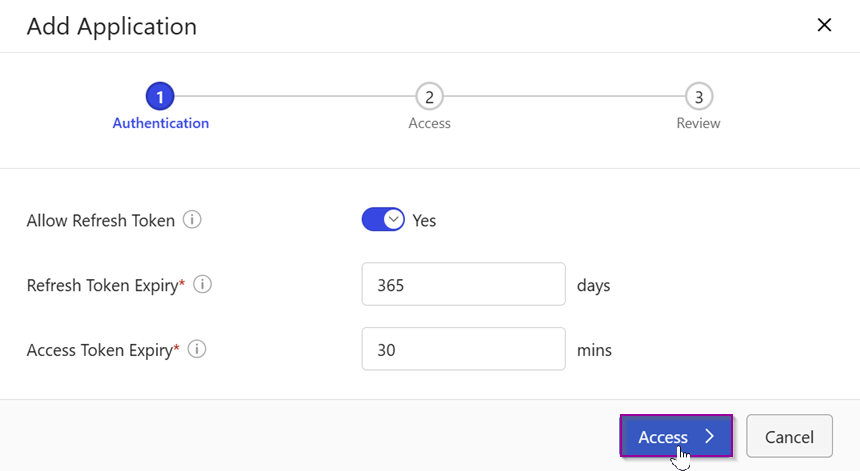
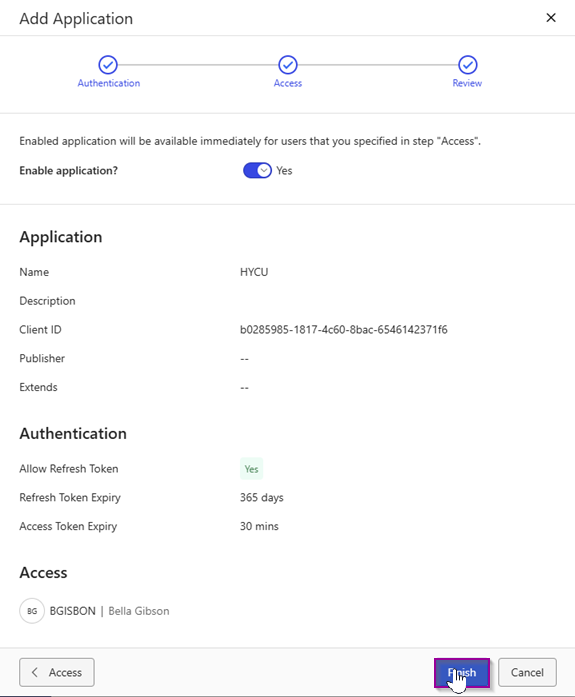
Next, on the "Add Application" page, update the authentication fields and click “Access”.
| Allow Refresh Token | When set to Yes, this allows the application to obtain a new access token when the existing access token expires, without prompting the user for authentication. Default for HYCU: Yes |
| Refresh Token Expiry | Duration in days for which a refresh token remains valid. Note: To configure this field, you must enable the Allow Refresh Token option. Default for HYCU: 365 days |
| Access Token Expiry | Duration of inactivity allowed in minutes before invalidating an access token of a user. Default for HYCU: 30 minutes. |
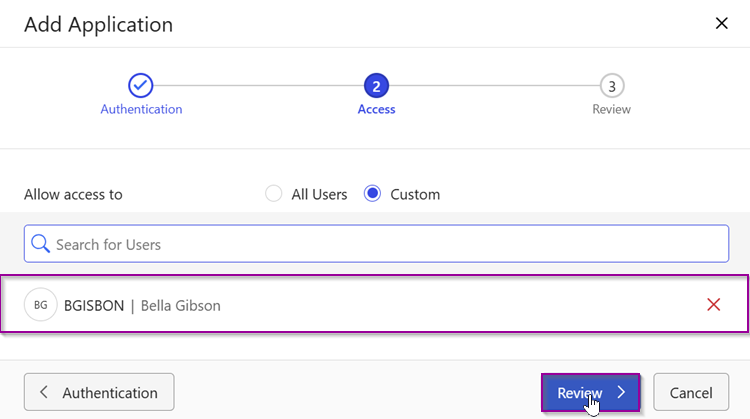
Next, on the “Add Application” page, select "Custom Allow access to" to configure access for the user “Bella Gibson”. Click “Review”.
Note: Since 'Bella Gibson' is the iManage Library Admin, it is always a good practice to follow the least privilege policy.
Next, on the "Add Application" page, review the configuration and click “Finish”. This will register the HYCU application in iManage Control Center.
Note ?: You do not need to retrieve the Client ID and Client Secret for HYCU's authorization. Since HYCU uses an inbuilt HYCU-managed application for accessing the registered HYCU Application in iManage, the Client ID and Secret information is handled by the Cloud Account. The only key factor is selecting the correct OAuth Type Cloud Account (Prod or Trial).
3. Adding iManage as an R-Cloud module in HYCU R-Cloud
Let’s cover the procedure for adding iManage as a Source.
Login to HYCU R-Cloud, click on the “Settings” in the top-right corner of the screen. Click on the “Sources” tab.
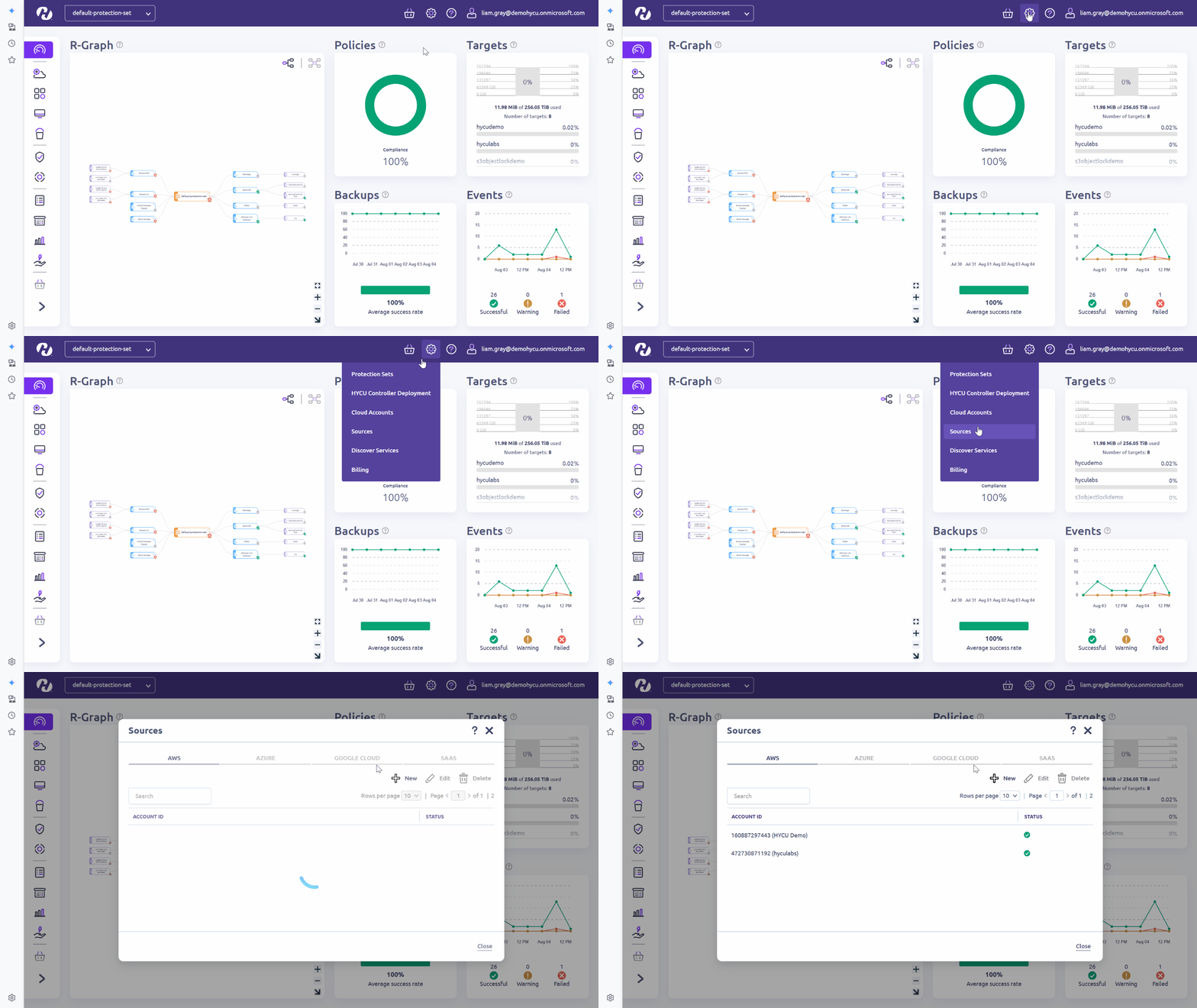
Next, in the Sources dialog box, select the “SAAS” page and click “New”.
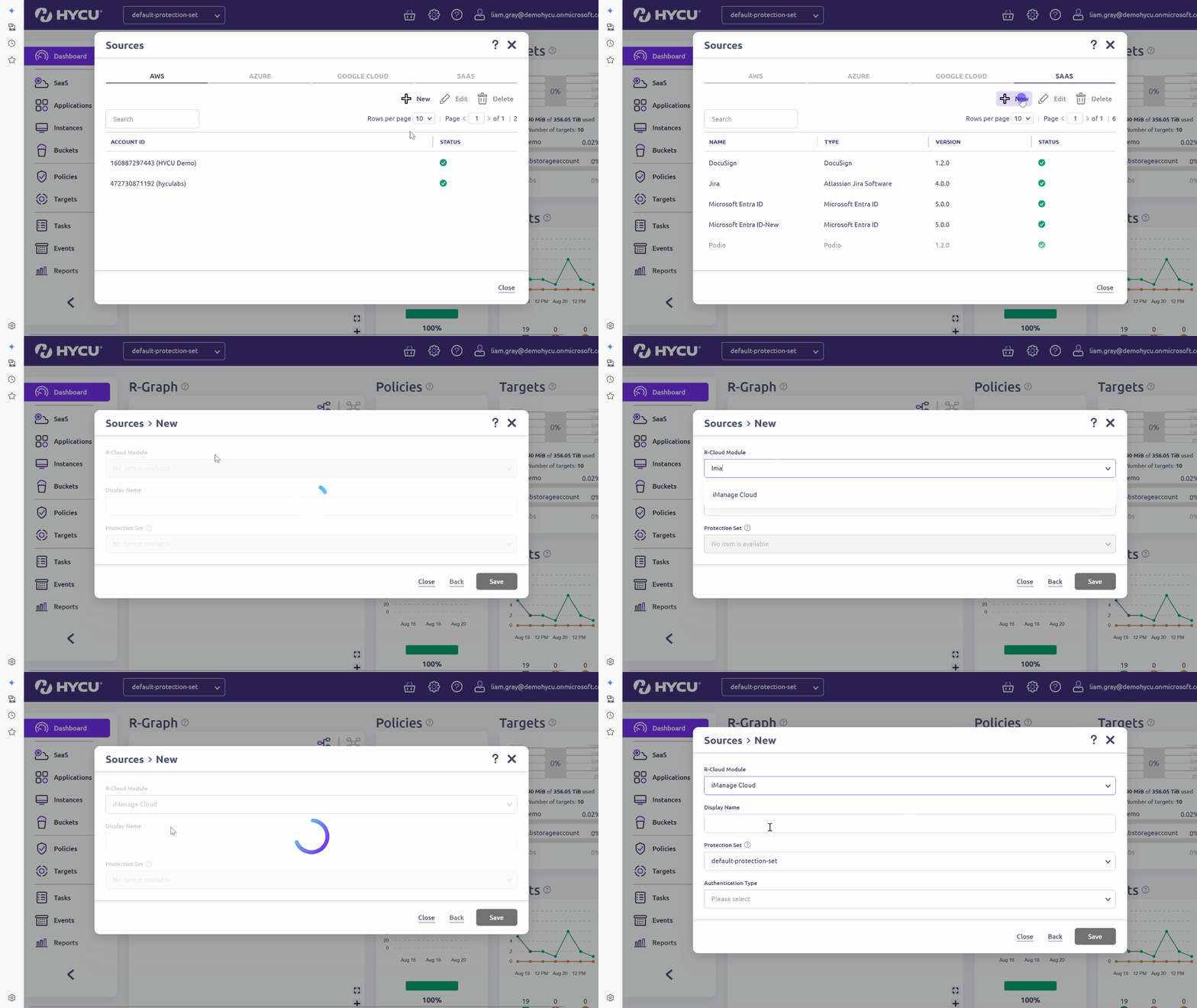
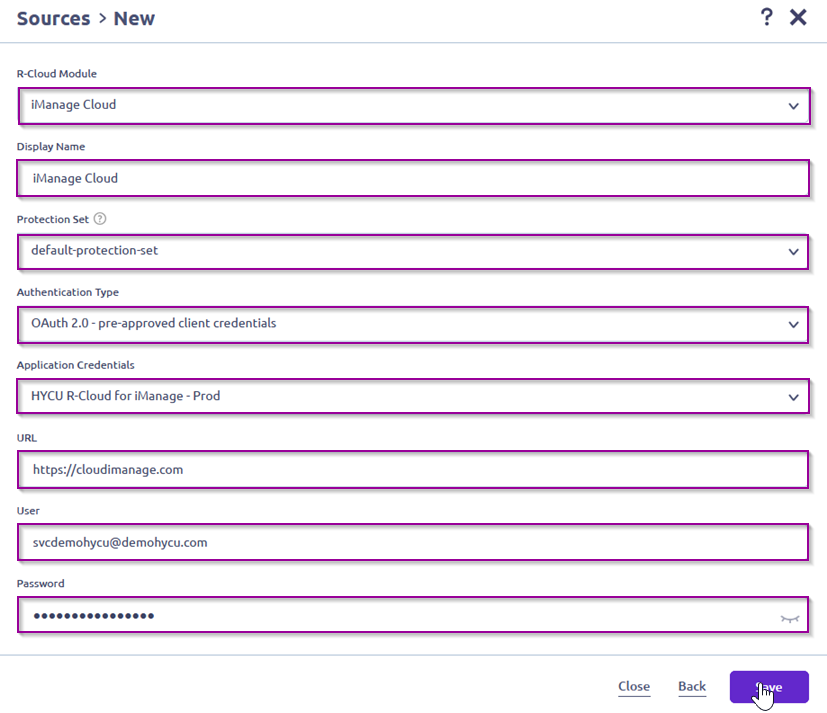
Next, on the “Sources → New” page, enter the following information, and click “Save”.
| R-Cloud Module | iManage Cloud | Select the R-Cloud module. |
| Display name | User defined | Assign a name to identify the R-Cloud module. |
| Protection Set | Your company | default protection set |
| Authentication Type | OAuth 2.0-pre-approved client credentials | Upon selecting the OAuth 2.0 pre-approved client credentials, the UI will prompt you to choose the Application credentials corresponding to your iManage tenant Type. |
| Application Credentials | Select the Appropriate Application credentials. | For instance, HYCU R-Cloud for iManage-prod, if you are going to protect the iManage production instance. |
| URL | https://cloudimanage.com | The sign-in URL, which can be either the default https://cloudimanage.com or a customized one, depends on the type of iManage cloud type. |
| User | iManage Cloud Service Account Username. | For more details, refer to 2.3 Creating a Service Account |
| Password | iManage Cloud Service Account Auth Key. | For more details, refer to 2.3 Creating a Service Account |
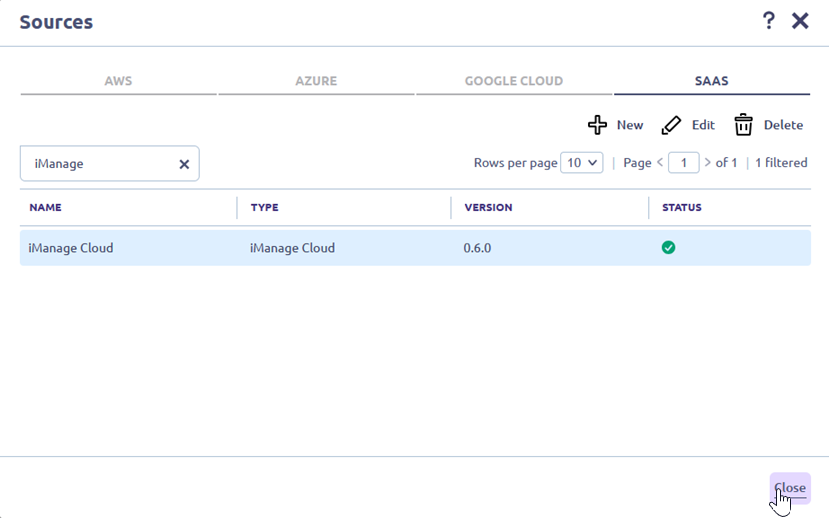
The R-Cloud module has been added to the list of SaaS sources. The status of the added source should be green (✅). Click “Close.” All protected Libraries (Databases) are discovered and available as separate SaaS applications in HYCU.
Keep in mind that Configuring Data Movers for iManage is not an optional step. Please enable “Data Movers” under Backup Option.
WARNING ⚠️: Using production application credentials to protect an iManage sandbox(trial) instance can lead to the following error: 'Error code: 500 Message: aiohttp.client_exceptions.ClientResponseError: 400, message='Bad Request', url='https://cloudimanage.com/auth/oauth2/token'.' This indicates that the registered HYCU application and the application credentials used do not belong to the same iManage tenant types. Always ensure you are using the correct application credentials, service account username, and auth key.

4. Points to Remember
4.1 iManage Cloud Key Terminologies
| Terms | Description |
|---|---|
| Sharing | This allows you to give others access to your files or folders. |
| Collaborators | People you've shared files or folders with. They can be colleagues or external partners. |
| Permissions | Settings that control what collaborators can do—like view, comment, or edit files. |
| Version History | A record of all the changes made to a file so you can revert to earlier versions if needed. |
| Trash | Deleted files are moved here first, allowing you to recover them before they're permanently removed. |
4.2 iManage Cloud data hierarchical structure
| Data hierarchical structure | Description |
|---|---|
| Libraries | The highest-level container, managed by administrators. |
| Workspaces | Organize documents and emails related to specific projects or matters. |
| Folders | Store documents, emails, and other folders within workspaces. |
| Tabs | Organize folders within a workspace. |
| Documents & Files | The core data objects stored within the structure. I.e.,docs, .pdf, .csv, JPG |
| Files Version | Each document/file can have multiple file versions with separate metadata and access settings, which is protected by HYCU. |
| Metadata | Customizable tags and attributes to organize and search files and folders. |
Was this article helpful?
That’s Great!
Thank you for your feedback
Sorry! We couldn't be helpful
Thank you for your feedback
Feedback sent
We appreciate your effort and will try to fix the article